![logo_2x.png]](https://support.facsware.com/hs-fs/hubfs/FACS_January_2020/Images/logo_2x.png?height=40&name=logo_2x.png)
Mentioning a User
- Open the entry and go to its Comments.
- In the comment box, type @
- Keep typing the person's name to narrow the list, then select them.
- The mentioned user appears as a highlighted name (chip) in your comment. Repeat to mention more than one person.
- Save the comment.
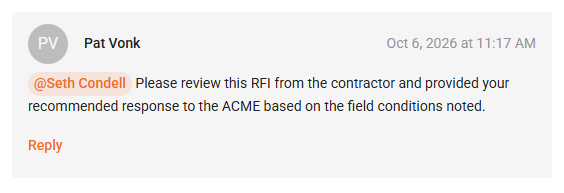
NOTE: Mentions can only be added within the Platform. Typing @ and a name in an email reply to a comment notification does not mention that user.
Who Can Be Mentioned
- The list only shows users who can see the comment: users who have access to the entry and are included in the comment's visibility.
- You can not mention yourself.
Editing a Comment
- If you edit a comment and add a new mention, only the newly added user is notified. Users who were already mentioned don't get another email.
- If you remove a user, save, and then add them back, they'll be notified again.
Mention Email Notifications
When a comment with a mention is saved, each mentioned user receives an email, as long as their Someone mentions you notification is turned on. Email is the only way users are notified of a mention.
What the Email Includes
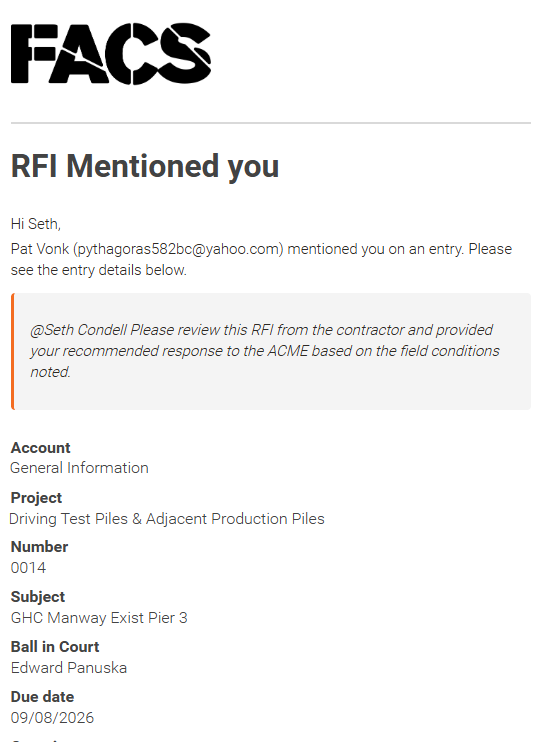
- Subject: FACS - [Document Template Name] Mentioned you on [Project Name]
- Who mentioned you
- The comment text, set apart so it's easy to spot
- The entry's Account, Project, Status, and any other fields enabled for that Document Template's notifications
- A button and a link to open the entry
How Mentions Work with Other Comment Notifications
- Notify recipients doesn't matter for mentions. Mention emails are sent whether or not the Notify recipients checkbox was selected on the comment. That checkbox only controls the regular comment notification.
- No duplicate emails. If a mentioned user also has Comments notifications turned on, they receive only the mention email for that comment, not both.
Turning Mention Notifications On or Off
Mention emails are controlled by the Someone mentions you row in your notification preferences, just below Assigned to me. It's turned on by default and is available for every Project and Document Template, since all entries have Comments.
- Go to User Preferences / Notifications.
- Find the Someone mentions you row.
- Use the switch in the Email column to turn mention emails on or off. This is set separately for each Project and Document Template.
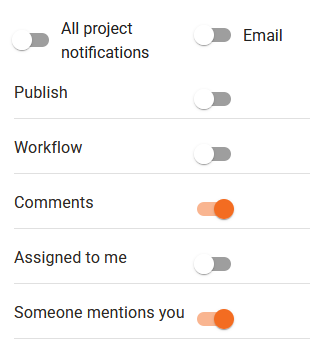
NOTE: If this switch is turned off, you can still be mentioned in comments, but you won't receive an email about it.
If you have any questions, or need additional assistance, please reach out to our support team at support@facsware.com and we will be happy to assist you.