![logo_2x.png]](https://support.facsware.com/hs-fs/hubfs/FACS_January_2020/Images/logo_2x.png?height=40&name=logo_2x.png)
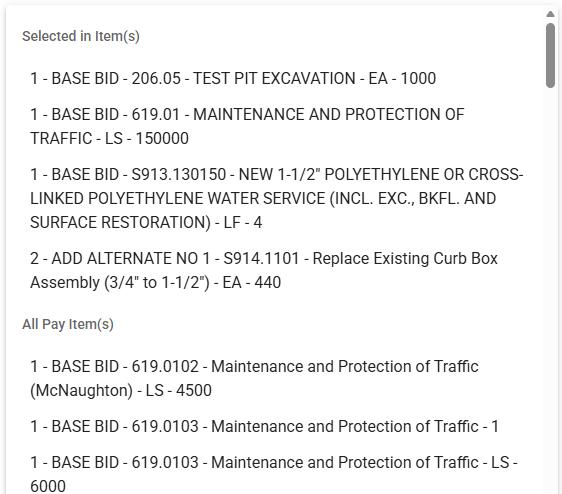
The most common example is the FACS standard Daily Report. The Item Details table is the first place Pay Items appear, so it defines the Pay Items being worked on that day. When an Inspector adds a person in Personnel Details or a piece of equipment in Equipment Details, the Associated Pay Item dropdown lists those Pay Items at the top.
Why This Matters
On a busy day, a Daily Report can list a handful of Pay Items out of hundreds or thousands in the Project. Before this change, field personnel had to scroll or search the full Pay Item list every time they tied a person or a piece of equipment to the work, and it was easy to pick the wrong one.
Linked Catalog fields make this faster and more accurate:
- The right choices come first. Values already selected in the source table appear at the top of the dropdown, so users rarely need to search.
- Nothing is locked out. The full list is still available below, for work that hasn't been added to the source table yet.
- Changes carry through. If a source value is changed or removed, the Platform asks how to handle the rows that use it, so linked values never quietly point to the wrong item.
- No extra setup. The link is based on the order fields appear in the entry. There's nothing to configure.
- The source table is the first table, in the order fields appear in the entry, that contains a Catalog field from the list. In the Daily Report, that's Item Details.
- Linked tables are any later tables with a Catalog field from the same list. In the Daily Report, those are Personnel Details and Equipment Details.
- Matches are based on the underlying list item, not on the table row or the text displayed. Two fields are linked whenever they hold the same item, even if a different row or table label is involved.
NOTE: To change which table is the source, change the order of the tables in the Document Template Builder. The first table in the entry is always the source.
Selecting a Value in a Linked Table
In a linked table, the dropdown is split into two groups:
- Selected in source table lists the values currently selected in the source table.
- All List Name lists the rest of the options in the list.
Example:
The Daily Report contains:
| Item Details | Pay Item |
|---|---|
| Row 1 | 002 — Pavement Removed, Asphalt Including Saw Cuts |
| Row 2 | 043 — 8" Wattle |
When adding Matt in Personnel Details, the Associated Pay Item dropdown shows:
Selected in Item Details
- 002 — Pavement Removed, Asphalt Including Saw Cuts
- 043 — 8" Wattle
All Pay Items
- 003 — Pavement Removed, Concrete
- 089 — Concrete Headwall ODOT HW-2.1 Half Height
- 097 — Catch Basin ODOT 2-2B
- 098 — Catch Basin ODOT 2-3
- 100 — French Drain
- …
Selecting 002 links Matt's row to the Pay Item in Item Details Row 1.
Selecting a Value That Isn't in the Source Table Yet
You can select any option from the All List Name group. If it isn't in the source table, the value is saved but isn't linked to anything yet.
If that value is added to the source table later, the link is made automatically. For example, if Matt is assigned 097 — Catch Basin ODOT 2-2B and 097 is later added to Item Details, Matt's row is linked to it without any further action.
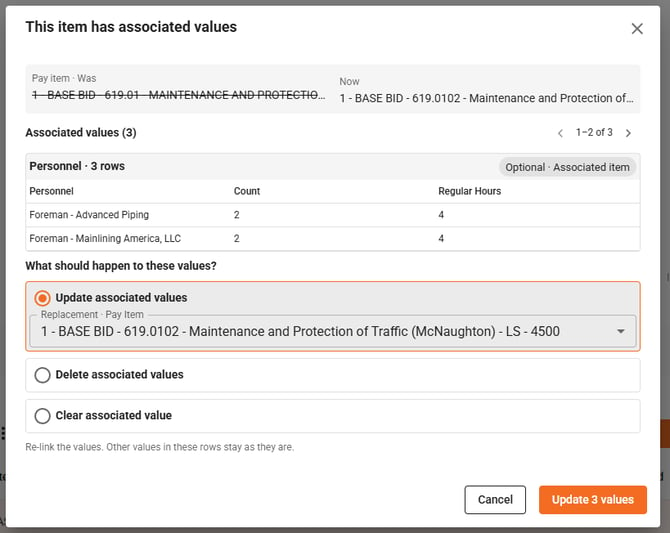
When a Source Value Changes or Is RemovedIf a value is changed or deleted in the source table, and linked rows still use that value, a dialog asks how to handle them. The dialog names the value and how many rows use it in each table, for example:
002 — Pavement Removed, Asphalt Including Saw Cuts is used by 2 rows in Personnel Details and 1 row in Equipment Details. How should those Associated Pay Item values be handled?
| Option | What it does |
|---|---|
| Update or Reassign | Replaces the old value in every affected row with a value that's in the source table. When you change a value, the new value is offered. When you delete a row, you can choose any value still in the source table. |
| Clear | Removes the old value from every affected row, leaving the field blank. |
| Cancel | Undoes the change to the source table. Nothing else changes. |
Only rows that still hold the removed value are affected. Rows linked to other values stay as they are, and no rows are deleted from the linked tables.
Example: Changing a Source Value
The Daily Report contains:
| Table | Row | Value |
|---|---|---|
| Item Details | Row 1 | 002 — Pavement Removed, Asphalt Including Saw Cuts |
| Item Details | Row 2 | 043 — 8" Wattle |
| Personnel Details | Matt | 002 — Pavement Removed, Asphalt Including Saw Cuts |
| Personnel Details | Joe | 002 — Pavement Removed, Asphalt Including Saw Cuts |
| Personnel Details | Chris | 043 — 8" Wattle |
| Equipment Details | Truck 12 | 002 — Pavement Removed, Asphalt Including Saw Cuts |
The user changes Item Details Row 1 from 002 to 003 — Pavement Removed, Concrete.
- If they choose Update, Matt, Joe, and Truck 12 change to 003. Chris stays on 043.
- If they choose Clear, Matt, Joe, and Truck 12 become blank. Chris stays on 043.
Example: Deleting a Source Row
Using the same Daily Report, the user deletes Item Details Row 1.
- If they choose Reassign and select 043 — 8" Wattle, Matt, Joe, and Truck 12 change to 043.
- If they choose Clear, Matt, Joe, and Truck 12 become blank.
Bulk Edits
If a bulk edit removes a value from the source table and there's no obvious replacement, the dialog lets you pick any value still in the source table, or clear the affected rows.
For example, Item Details Rows 1 and 2 both hold 002, and a bulk edit changes Row 1 to 003 and Row 2 to 043. The Platform can't tell whether Matt should move to 003 and Joe to 043, so you choose one replacement, or Clear, and it applies to every affected row. You can then adjust individual rows by hand.
When the Dialog Doesn't Appear
You can change or delete a source value without seeing the dialog when:
- The value still appears elsewhere in the source table. If 002 is in Item Details Rows 1 and 2, changing Row 1 doesn't affect anything. The dialog only appears when the last occurrence of a value is removed.
- No linked rows use the value. If nothing in Personnel Details or Equipment Details uses 002, the change goes through right away.
- The linked row was already changed. If Matt was switched from 002 to 043 before Item Details changed, Matt isn't included. Only rows that still hold the removed value are affected.
Required Fields
If the Catalog field in a linked table is required, Clear isn't available for that table. The affected rows must be reassigned to a value that's still in the source table.
If there's no other value in the source table to reassign to, the change must be canceled. Add the replacement value to the source table first, then make the change.
This is checked separately for each linked table. For example, if Associated Pay Item is required in Personnel Details but not in Equipment Details, only the Personnel Details rows must be reassigned.
Multi-Select Catalog Fields
If the field in a linked table allows multiple selections, only the affected value is updated or cleared. Other values in the field stay as they are.
For example, Matt's Associated Pay Item holds both 002 and 043, and 002 is removed from Item Details:
- Update to 003 leaves Matt with 003 and 043.
- Clear leaves Matt with 043.
Duplicating an Entry
When you duplicate an entry, the links between tables are copied with it. If you change a source value in the duplicate, the same dialog appears and works the same way.
History
When the dialog updates or clears linked rows, each change is recorded in the entry's History as part of the same update as the source change. For example, changing Item Details Row 1 to 003 and choosing Update records four changes together: Item Details Row 1, Matt, Joe, and Truck 12.
NOTES:
-
The source table is always the first table in the entry that uses the list. Reorder tables in the Document Template Builder to change it.
- Links are based on the list item itself, not on row position or displayed text.
- The dialog never deletes rows. It only updates or clears the Catalog field value.
- Choosing Cancel undoes the source change and leaves everything as it was.
If you have any questions, or need additional assistance, please reach out to our support team at support@facsware.com and we will be happy to assist you.