![logo_2x.png]](https://support.facsware.com/hs-fs/hubfs/FACS_January_2020/Images/logo_2x.png?height=40&name=logo_2x.png)
Starting a Search
Click the search icon in the header row (to the left of the Support icon) to open the search field. Type your term and press Enter to run the search.
- Searches are case-insensitive and support partial word matches — you don't need to type a whole word or match its exact capitalization.
- A search term may need to be at least 3 characters long.
- If you type a term and then navigate to a different page before searching, the search field closes and you'll need to start over.
Searching at the Project Level vs. Account Level
- From within a Project, your search only looks at entries in that project.
- From the Project Group level, your search only looks at entries in that Group.
- From the Account level, your search looks across every project you have access to.
If you switch projects (or move between a project and the account level) using the project drop-down menu while on the Search Results page, your previous search is cleared and the page is ready for a new search — this keeps you from accidentally seeing stale results from a different project or account.
What Gets Searched
Search looks at all entries — not blank fields, list values, settings areas, field labels, or system-generated values.
Included:
- Non-deleted Document Template entries
- Field types: Assignee, Catalog (select menu), Creator, Date/Time, Number, Text/Text Area, Table cell values, Status, and File References (file name, notes, date)
- Selected values within Catalog fields
Excluded:
- Users, Lists, Project, and Library settings (raw list values aren't searchable, but list values used within an entry are)
- Field labels, prefilled text, Formula fields, Signature fields, and other system data
- Catalog Checkbox fields
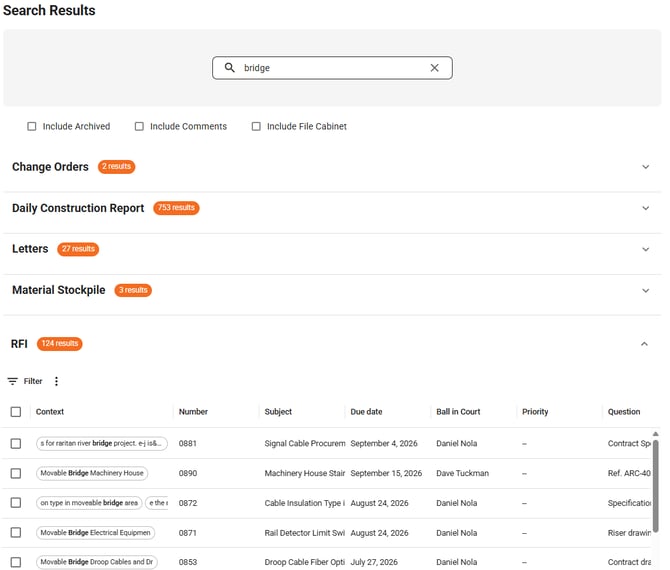
By default, search only includes entries in Published state and does not search Comments, Archived entries or the File Cabinet. You can expand your search using three optional checkboxes on the Search Results page:
- Include Archived Document Entries – also searches entries in Archived state
- Include Comments – also searches text within Comments (and, where possible, the file names of attachments added to Comments)
- Include File Cabinet - also searches all file names and folders in the File Cabinet
After selecting either checkbox, click back into the search field and press Enter to re-run the search with the expanded scope. These checkboxes reset each time you leave the Search Results page.
Entries are searchable immediately after being saved, and each entry appears only once in your results, even if the term appears multiple times within it.
NOTE: Adding Comments and/or File Cabinet to the Search request will likely take more time for the system to return search results due to the amount of additional data that needs to be reviewed.
The File Cabinet is only available for searching from within a specific project.
Understanding Your Results
Results are grouped into a separate table for each Document Template that has at least one matching entry. Within each table:
- Entries with the most matches appear at the top
- Entries with the same number of matches are then sorted by most recently created
Each results table uses the same columns as that template's regular log page, plus a Context column on the far left showing roughly 20 characters before and after your searched term, so you can see the match without opening the entry. If a term appears more than once in an entry, you may see each instance listed. The Context column can be toggled on or off just like any other log page column.
When searching at the Account level and Group level, a Project column also appears as the second column in each table, so you can tell which project each result belongs to.
Each results table supports the same core features as a standard log page, including:
- Column sorting and filtering
- Exporting one or more entries via the More > Export option
- Opening an entry in a new tab (double-click, or select and click View)
Permissions
Search results only include entries you're already able to access. Specifically:
- Account-level searches only return results from projects you have access to
- Only Document Templates your role can view are included
- Only entries (and, when Comments are included, only Comments) you're a Contributor on are returned
Search will never surface an entry or comment you wouldn't otherwise be able to open directly.
No Results Found
If no entries match your search (or none of the matches are ones you have permission to view), the Search Results page will display a "No entries found that contain the searched term. Please try another search." message, along with the search field so you can immediately try a new term.
Location
Search Bar located at the top of every page by clicking the magnifying glass icon
If you have any questions, or need additional assistance, please reach out to our support team at support@facsware.com and we will be happy to assist you.