![logo_2x.png]](https://support.facsware.com/hs-fs/hubfs/FACS_January_2020/Images/logo_2x.png?height=40&name=logo_2x.png)
Which Emails You Can Reply To
You can reply to the following entry notifications to add a Comment:
- Publish
- Workflow
- Comments
- Assigned to me
- Someone mentions you
Notifications that accept replies include the line "Reply above this line to add a Comment to this entry." If you don't see that line, replying to the email won't add a Comment.
Replying to Add a Comment
- Open the FACS notification email.
- Click Reply in your email app.
- Type your Comment above the line that reads "Reply above this line to add a Comment to this entry."
- Attach any files you want to include.
- Send the email.
Your reply is added to the entry as a Comment from you, just as if you'd entered it in the Platform.
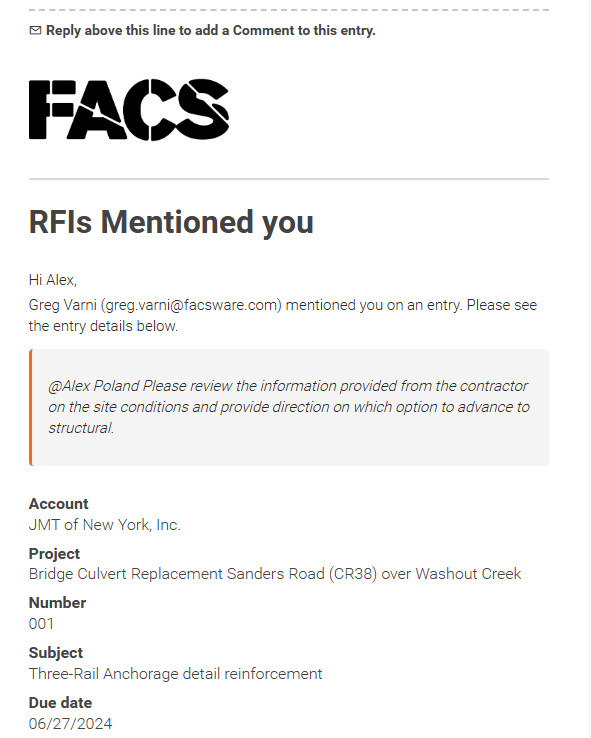
NOTE: Only the text above the divider line is saved. Anything below it, such as the original notification, earlier messages in the thread, and your email signature, is left out. Don't delete the divider line, or your signature and other email content may be included in the Comment. This line is also often automatically added by most email clients, like Gmail and Outlook.
TIP: The email reply capture does not include formatting. Bulleted or number lists and other rich text font features are ignored. It is best to keep the reply via email comments simple.
Where Your Reply Appears
- Replying to a Comment notification adds your reply as a Reply nested under the original Comment. It uses the same visibility as that Comment. If the original Comment was private, your reply is private to the same users. Otherwise, it's visible to everyone with access to the entry.
- Replying to any other notification (Publish, Workflow, Assigned to me, or Someone mentions you) adds a new Comment on the entry. These Comments are public, so everyone with access to the entry can see them.
NOTE: You can't make a new Comment private when replying by email. To add a private Comment, log in to the Platform.
Notifications for Emailed Comments
A Comment added by email works the same as one added in the Platform. It triggers the standard Comment notification to the users who would normally receive it, as if Notify recipients were selected. You won't receive a notification about your own Comment.
NOTE: Mentions can only be added within the Platform. Typing @ and a name in an email reply does not mention that user.
Attachments
Files attached to your reply are saved as References on the new Comment.
- Images that are part of the email's formatting, such as signature logos or otherwise inside the body of the email are often filtered out and not saved.
- FACS applies the same file limits as when you add files to a Comment in the Platform. However, most email apps have a smaller attachment size limit than FACS. For larger files, log in to the Platform and add them to the Comment directly.
Who Can Reply by Email
When FACS receives your reply, it checks your access at that moment, not when the notification was sent. Your reply is saved when all of the following are true:
- You're sending from the email address of an active FACS user, including Guest users.
- You currently have access to the Account and Project, and the Project is Published (not Archived or Deleted).
- The entry still exists and hasn't been deleted. Archived entries can still receive Comments.
- Your Project Role allows you to add Comments to the entry.
In short, if you can add a Comment to the entry in the Platform, you can add one by email.
Forwarded emails: Having a copy of a notification doesn't give someone permission to comment. If a notification is forwarded and the new recipient replies, FACS checks the sender's access. The Comment is only saved if that person could add the Comment in the Platform themselves.
If Your Reply Can't Be Saved
If FACS can't add your reply as a Comment, you'll receive an email with the subject FACS - Your comment was not saved. It explains that your reply wasn't added to the entry and asks you to log in to the Platform to add the Comment directly.
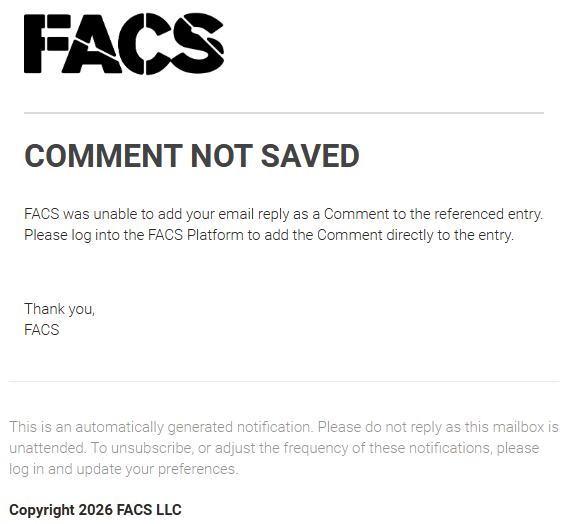
Common reasons a reply is rejected:
- The email was sent from an address that isn't an active FACS user.
- You no longer have access to the Account, Project, or entry.
- Your role doesn't allow you to add Comments.
- The entry or Project has been deleted, or the Project is Archived.
- FACS couldn't find your reply text, for example if nothing was typed above the divider line.
- An attached file couldn't be saved.
For security, the rejection email doesn't include any entry details.
If you have any questions, or need additional assistance, please reach out to our support team at support@facsware.com and we will be happy to assist you.