![logo_2x.png]](https://support.facsware.com/hs-fs/hubfs/FACS_January_2020/Images/logo_2x.png?height=40&name=logo_2x.png)
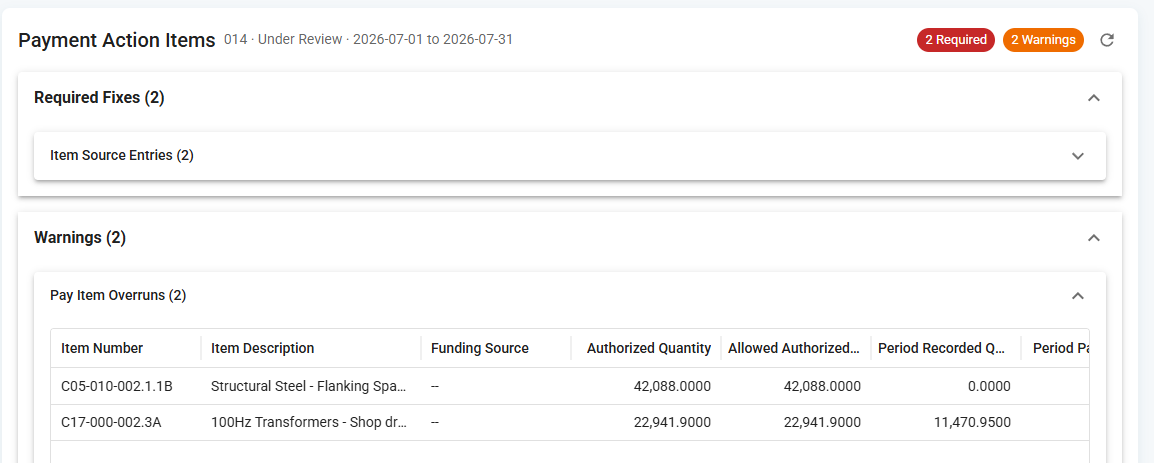
Action Items fall into two categories:
- Required Fixes must be corrected before the Payment can be Approved.
- Warnings should be reviewed, but don’t necessarily stop the Payment from being Approved.
Why This Matters
Deciding whether a Payment is ready for approval used to mean checking several areas of the Project by hand. Issues were often found only at the last step. The Payment Action Items widget gives the Project Engineer a checklist instead:
- One place to review. Every outstanding Payment issue is listed together on the Project Dashboard.
- Clear priorities. Required Fixes are kept separate from Warnings, so you know what must be done and what only needs a review.
- Direct access. Click an Action Item to open the record that needs attention.
- Always current. Action Items reflect the Project’s current data. There’s nothing to mark complete. Once an issue is corrected, it drops off the list.
Who Sees the Widget
The widget appears on the Project Dashboard of any Project that has the Payment Document Template assigned. It’s shown to users with the Project Administrator or Project Manager Project Role.
Which Payment Is Checked
The widget checks the Project’s current Payment:
- If a Payment entry is in any status other than Approved or Canceled, that entry is the current Payment. Its period start and end dates determine which records are checked.
- If there are no Payment entries, or all Payment entries are Approved or Canceled, the widget shows “No Pending Payment.”
Reading the Widget
Action Items are grouped under Required Fixes and Warnings, with a count for each group and each section. For example:
Required Fixes (4)
- Change Orders (1)
- Item Source Entries Not Approved (2)
- Material Stockpile Overpayments (1)
Warnings (3)
- Material Acceptance Underruns (2)
- Pay Item Overruns (1)
Expand a section to see its Action Items. Sections with no Action Items are hidden.
NOTE: The widget updates when the page is refreshed or the refresh icon is clicked. After you resolve an issue, refresh the Project Dashboard to see it drop off the list.
Required Fixes
Change Orders Requiring Approval or Date Correction
What it means: A Change Order has a Date Approved within the current Payment period, but the Change Order itself isn’t in Approved status. A Change Order can’t affect a Payment period based on its approval date unless it’s actually been Approved.
How to clear it:
- Click the row to open the Change Order.
- Do one of the following:
- If the Change Order is approved: use Workflow to move it to Approved.
- If it isn’t approved yet: change or remove the Date Approved so it no longer falls within the current Payment period.
- Refresh the Project Dashboard.
Item Source Entries Not Approved
What it means: An entry from your Item Source Template, such as the Daily Report, has a date within the current Payment period but isn’t in Approved status. Every Item Source entry in the period must be Approved before the Payment can be completed.
How to clear it:
- Click the row to open the entry.
- Review it, then use Workflow to move it to Approved.
- If the entry doesn’t belong in this Payment period, correct its date. If it shouldn’t exist, delete it.
- Refresh the Project Dashboard.
TIP: To approve several entries at once, open the Item Source Template’s Log Page. Filter it to the Payment period dates, select the entries, and use Bulk Edit to move them to Approved.
Material Stockpile Overpayments
What it means: More has been paid for an Item’s stockpiled material than is currently allowed, taking the stockpile threshold into account. This usually happens when Item work recorded since the last Payment used up stockpiled material, so part of the earlier stockpile payment is no longer valid. The paid stockpile amount must be reduced so the same material isn’t paid for twice.
How to clear it:
- Click the row to open the Item’s Material Stockpile entry.
- In the current Payment period, enter a negative stockpile amount or a stockpile reduction of at least the negative Remaining Stockpile Amount Allowed.
- Save the entry and refresh the Project Dashboard. Once the remaining amount is zero or more, the Item drops off the list.
NOTE: The Material Stockpile entry won’t let you save an amount that’s over the limit. If an Item appears here, it’s because Item quantity recorded after the stockpile was paid made the existing payment too high.
Warnings
Warnings don’t necessarily stop you from approving the Payment, but you should review each one first.
Material Acceptance Underruns
What it means: The Pay Item requires Material Acceptance, and less quantity has been accepted than has been recorded and would otherwise be paid. Payment for the Item is limited to the accepted quantity. The rest can be paid in a future period once enough Material Acceptance is recorded.
How to clear it:
- Click the row to open the Item’s Material Acceptance entry.
- Record and approve enough Material Acceptance to cover the Material Acceptance Quantity Needed.
- If the recorded quantity is wrong, correct it in the Item Source entries instead.
- Refresh the Project Dashboard.
Pay Item Overruns
What it means: The quantity recorded for a Pay Item is more than its Authorized Quantity, including any Allowed Overrun Threshold. Projects can record more than the authorized quantity because work in the field can move ahead of formal approval. Payment for the Item is limited to its authorized quantity. A Change Order is needed to increase the authorized quantity before the extra quantity can be paid.
NOTE: Rows in this section can’t be clicked. Go to the Change Orders or Item Source entries directly to make changes.
How to clear it:
- If the extra quantity is valid: create and approve a Change Order to increase the Item’s Authorized Quantity.
- If the recorded quantity is wrong: correct it in the Item Source entries.
The Warning clears once the Item is no longer over its Allowed Authorized Quantity and the Project Dashboard is refreshed.
Things to Keep in Mind
- Action Items aren’t separate tasks. They show the current state of your Payment data, so the only way to clear one is to fix the underlying record.
- Refresh the Project Dashboard after making changes to see the updated list.
- Clearing all Required Fixes doesn’t approve the Payment. Once they’re resolved, approve the Payment entry as usual.
If you have any questions, or need additional assistance, please reach out to our support team at support@facsware.com and we will be happy to assist you.