![logo_2x.png]](https://support.facsware.com/hs-fs/hubfs/FACS_January_2020/Images/logo_2x.png?height=40&name=logo_2x.png)
How to Export a Cover Sheet
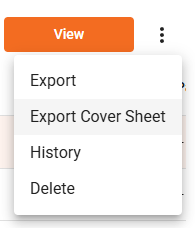
You can export a Cover Sheet from either the Payment log page or an individual Payment entry:
- Select one or more Payment entries (from the log page) or open a Payment entry.
- Click the More button.
- Select Export Cover Sheet, located directly below the standard Export option.
The standard Export option produces the regular document template PDF — Export Cover Sheet is an additional option, not a replacement.
If you select multiple entries from the log page, the Cover Sheet PDFs are delivered by email the same way a standard multi-entry export is.
All users who can view a Payment entry can export its Cover Sheet — no additional permissions are required.
File Naming
Cover Sheet exports follow the same naming convention as other PDF exports, with "Cover Sheet" added after the template name:
Date Created - Payment Cover Sheet - Creator Name.pdf
For example, a Payment entry created September 1, 2025 by Greg Varni would export as:
09-01-2025 - Payment Cover Sheet - Greg Varni.pdf
What's on the Cover Sheet
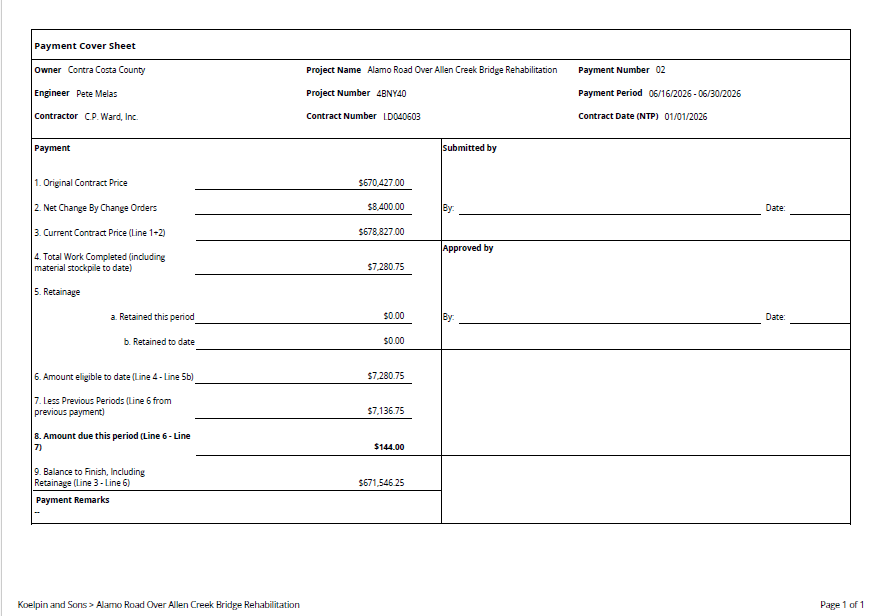
The Cover Sheet is landscape-oriented and includes the following sections:
Header
Displays the page title Payment Cover Sheet, followed by a dividing line. References and Comments from the entry are not included in this export.
Summary
A three-column overview identifying the project and payment period:
| Company | Project | Payment |
|---|---|---|
| Owner | Project Name | Payment Number |
| Engineer | Project Number | Payment Period (start - end) |
| Contractor | Contract Number | Contract Date (NTP) |
Note: The Owner field pulls from the Project Owner field on Project Settings > General — if this hasn't been filled in yet, that field will be blank on the Cover Sheet.
Payment
A running calculation of the payment amounts for the period, including:
- Original Contract Price
- Net Change by Change Orders
- Current Contract Price
- Total Work Completed (including material stockpile to date)
- Retainage, broken into:
- Retained this period
- Retained to date
- Amount eligible to date
- Less previous period
- Amount due this period (shown in bold)
- Balance to Finish, including Retainage
All dollar values are shown with two decimal places and a dollar sign.
Remarks
Displays the Payment entry's Remarks field below the Payment section. If the Remarks text is long enough to require a second page, the Header, Summary, and Footer repeat on that page, and the Remarks continue in landscape format using the full page width.
Signatures
Displays a signature block for each signature field configured on your account's Payment document template (the number of fields varies by account). For each one, the Cover Sheet shows:
- The field's label (in bold)
- By: — the signer's signature if signed, or a blank line if not yet signed
- Date: — the date signed (mm/dd/yyyy), or a blank line if not yet signed
- The signer's name, title, and company (only shown once the field is signed)
Footer
Matches the standard FACS export footer: a dividing line, followed by the Account and Project name and page numbering (Page n/n).
If you have any questions, or need additional assistance, please reach out to our support team at support@facsware.com and we will be happy to assist you.