![logo_2x.png]](https://support.facsware.com/hs-fs/hubfs/FACS_January_2020/Images/logo_2x.png?height=40&name=logo_2x.png)
Why This Matters
- Lower cost per user. The annual license rate is lower than the monthly rate.
- Only pay for the rest of the year. Annual licenses are pro-rated to your account's anniversary date, so you're never charged for time that has already passed.
- Monthly charges are credited. Each new annual license is automatically given to a user who currently has a monthly license, and that monthly license is credited.
- Not "use it or lose it." If your number of users goes down, unused annual licenses are credited toward future invoices.
Who Can Purchase Licenses
Annual licenses can be purchased by users with access to Account Settings > Billing:
- Account Administrators
- Users with the Account Billing role
See Licenses and Default Access by Role for more on which roles need a paid license.
Before You Start
Pay Any Open Invoices
If your account uses Invoice as its payment method, all invoices must be paid before the Manage Subscription flyout can be opened.
To check for open invoices, scroll to the Invoice and Payment History section at the bottom of the Billing Details page. Click Pay Invoice next to any open invoice. Once every invoice is paid, you can open Manage Subscription.
Know How Many Licenses You Can Buy
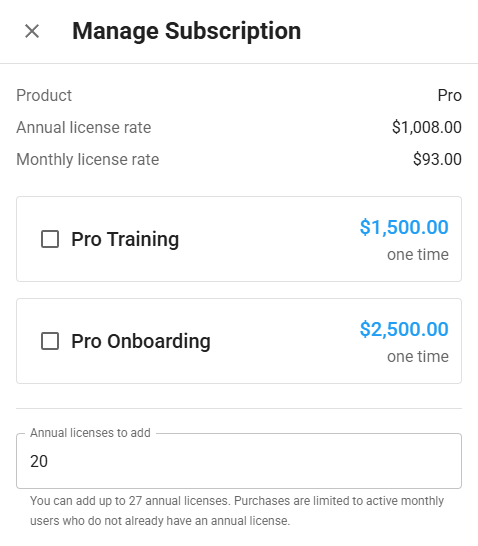
You can buy annual licenses up to your current number of users. In other words, you can move every user who currently has a monthly license onto an annual license, but you can't buy extra annual licenses for users who haven't been added yet.
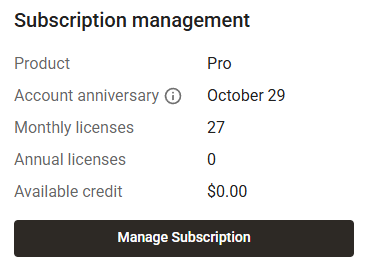
The Annual Licenses and Monthly Licenses counts at the top of the Billing Details page show how many of each you have today.
TIP: If you're about to add new users, add them first in Account Settings > Users. They'll start on monthly licenses, and you can then convert them to annual licenses.
Purchasing Annual Licenses
- Click the Gear icon and go to Account Settings > Billing.
- In the Subscription Management section, click Manage Subscription.
- In the Licenses section of the flyout, enter the number of licenses you want in Add annual licenses. Enter a whole number, up to your current number of users on monthly licenses.
- Review the Total. If you've also selected any Additional Services, such as Training or Onboarding, they're included in this amount.
- Click Purchase.
The flyout closes and the purchase is charged to your default payment method, or added to an invoice if your account uses Invoice billing. A receipt or invoice is sent to your account's Invoice Contact Email.
To leave without buying anything, click Cancel. No changes are made to your account.
How Annual License Pricing Works
Licenses Are Pro-Rated to Your Anniversary Date
All annual licenses on an account are good through the account’s anniversary date, shown on the Billing Details page. When you buy annual licenses partway through the year, you’re only charged for the time left until that date.
For example, if you buy annual licenses with six months left before your anniversary date, you pay about half of the annual license rate for each one.
What Happens on Your Anniversary Date
Annual licenses don’t renew automatically. When the anniversary date arrives, every user on an annual license is moved to a monthly license. This keeps accounts on auto-renew from automatically buying more annual licenses than they need, for example if the team has gotten smaller during the year.
To keep your users on annual licenses, purchase new annual licenses from Manage Subscription on or after your anniversary date. Users can be moved back to annual licenses right away, and the net cost is the same as if their licenses had renewed.
Monthly Licenses Are Credited
When you buy an annual license, the Platform automatically assigns it to a user who currently has a monthly license. That user's monthly license is then credited for the unused part of the month.
Because of this, the cost of buying annual licenses is often partly offset by a credit. Any credit is applied to your future invoices, and your available credit is shown in the Subscription Management section of the Billing Details page.
NOTE: You don't need to choose which users get the new annual licenses. The Platform moves users from monthly to annual licenses for you.
If Your Number of Users Goes Down
Annual licenses aren't "use it or lose it." If you deactivate users and end up with more annual licenses than active paid users, the unused annual licenses are credited to your account. The credit is applied to your future invoices.
This means you can buy annual licenses for your current team without worrying about paying for licenses you won't use if your team gets smaller later in the year.
Things to Keep in Mind
- If your account uses Invoice billing, pay all open invoices before opening Manage Subscription.
- You can only buy annual licenses up to your current number of users.
- Annual licenses are pro-rated to your anniversary date.
- Each new annual license replaces a user's monthly license, and the monthly license is credited.
- Unused annual licenses are credited toward future invoices if your user count goes down.
- Assigning users a free Account Role, such as Account Reviewer or Account Read Only, keeps them off a paid license altogether.
If you have any questions, or need additional assistance, please reach out to our support team at support@facsware.com and we will be happy to assist you.