![logo_2x.png]](https://support.facsware.com/hs-fs/hubfs/FACS_January_2020/Images/logo_2x.png?height=40&name=logo_2x.png)
Structure
-
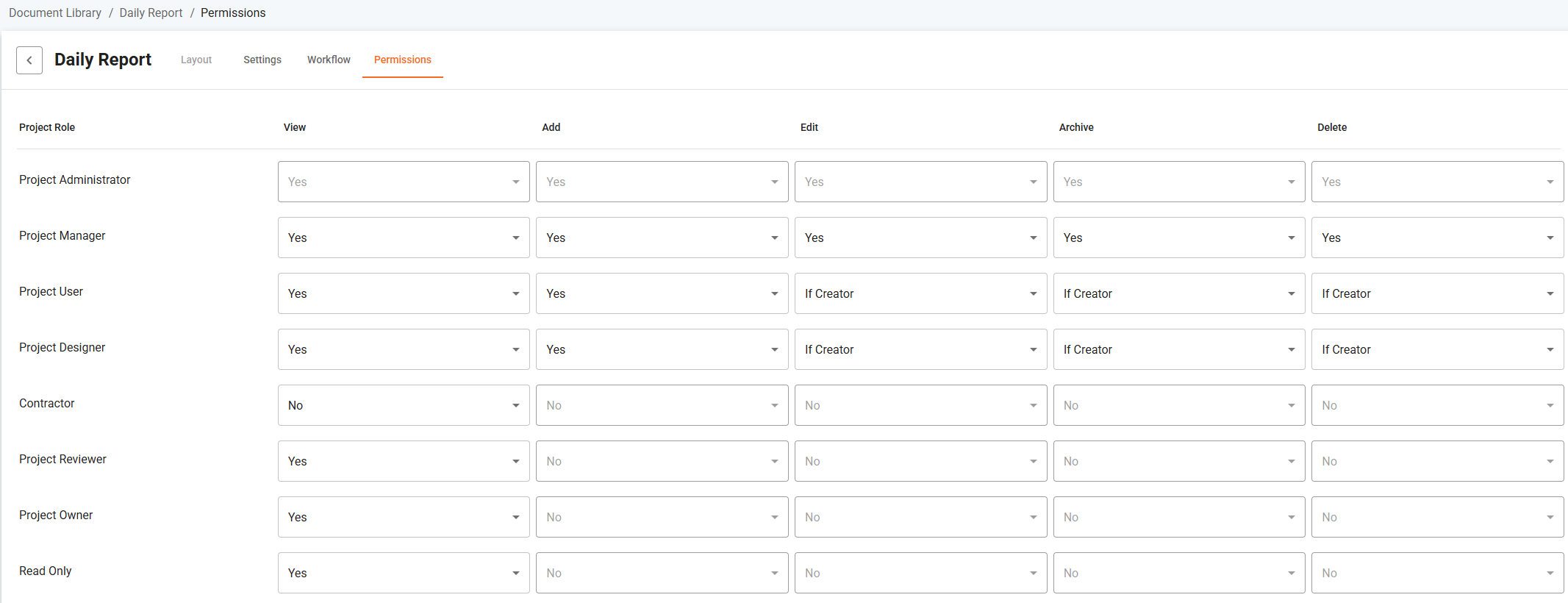
Roles and Users define who can access or modify Document Entries
-
Document Template Permissions are based on Project Role
-
Each Document Template has the same permission structure Account wide
Permission Types
Permissions can be set for both Document Templates and Project Lists across five action types:
| Permission | Definition |
|---|---|
| View | Read-only access to view entries |
| Add | Create a new entry or copy an existing one |
| Edit | Update fields/values within an entry |
| Archive | Archive entries (can be limited to creator only) |
| Delete | Remove entries (can be limited to creator only) |
Permission Settings
Each permission can be set to:
-
Yes – Users in this Role can perform the action
-
If Creator – Users in this Role can perform the action only on entries they created (for Archive, Delete, and Edit only)
-
No – Users in this Role cannot perform the action
NOTE: View and Add do not support “If Creator” logic.
Managing Permissions
-
Permissions are configured within each Document Template and are enforced across all projects within the account
-
Standard Project Roles include:
-
Project Administrator (cannot be edited), users with this role always have access to all Document Entries within the Project.
-
Project Manager, Project User, Project Designer, Contractor (all are editable for Pro accounts)
-
Project Reviewer, Project Owner, Read Only (View-only setting editable for Pro accounts)
- Project Reviewer is a special type of Read Only, Users in this Role are allowed to add Comments and modify the workflow of existing documents
-
- All roles except Contractor have access to the File Cabinet within a Project
Customizing Permissions
-
To change permissions for a specific project:
-
Duplicate the Document Template and apply a new permission structure
-
For entry-specific exceptions, use the Contributors feature to override standard permissions.
-
Location
Document Library > Document Template > Permissions
If you have any questions, or need additional assistance, please reach out to our support team at support@facsware.com and we will be happy to assist you.