![logo_2x.png]](https://support.facsware.com/hs-fs/hubfs/FACS_January_2020/Images/logo_2x.png?height=40&name=logo_2x.png)
This article is a visual companion to How do Permissions work?
Every user is given two roles that work together:
- An Account Role, which determines whether the user needs a paid or free license and what they can access in Account Settings.
- A Project Role, which determines what the user can do inside each Project.
NOTE: Licensing is based on the user's Account Role, not their Project Role. A user's Account Role also limits which Project Roles they can be given.
Paid vs. Free Licenses
|
Account Role |
License |
Account Settings Access |
|---|---|---|
|
Account Administrator |
💲 Paid |
Complete control over the account (Settings, Billing, Projects, Users) |
|
Account User |
💲 Paid |
No access to Account Settings |
|
Account Reviewer |
🆓 Free |
No access to Account Settings (Pro package only) |
|
Account Read Only |
🆓 Free |
No access to Account Settings (Standard and Pro packages) |
|
Account Billing |
🆓 Free |
Billing Details and Users only — update payment information and manage which users are active |
Which Project Role each Account Role can hold
✓ = Can be assigned this Project Role
— = Cannot be assigned this Project Role
| Project Role | Account Administrator 💲 | Account User 💲 | Account Reviewer 🆓 | Account Read Only 🆓 | Account Billing 🆓 |
|---|---|---|---|---|---|
| Project Administrator | ✓ | ✓ | — | — | — |
| Project Manager | — | ✓ | — | — | — |
| Project User | — | ✓ | — | — | — |
| Project Designer | — | ✓ | — | — | — |
| Contractor | — | ✓ | — | — | — |
| Project Reviewer | — | ✓ | ✓ | — | ✓ |
| Project Owner | — | ✓ | ✓ | ✓ | ✓ |
| Read Only | — | ✓ | ✓ | ✓ | ✓ |
NOTE: All Account Administrators are required to be Project Administrators.
Default Access by Project Role
✓ = Full access
◐ = Based on the Document Template's permission structure
— = No access
|
Project Role |
View Entries |
Add Entries |
Edit Entries |
Delete Entries |
Comments |
Workflow |
File Cabinet |
|---|---|---|---|---|---|---|---|
|
Project 💲 Administrator |
✓ | ✓ | ✓ | ✓ | ✓ | ✓ | ✓ |
| Project 💲 Manager | ✓ | ✓ | ✓ | ✓ | ✓ | ✓ | ✓ |
|
Project 💲 User |
✓ | ◐ | ◐ | ◐ | ◐ | ◐ | ✓ |
| Project 💲 Designer | ✓ | ◐ | ◐ | ◐ | ◐ | ◐ | ✓ |
| Contractor💲 | ✓ | ◐ | ◐ | ◐ | ◐ | ◐ | — |
| Project 🆓 Reviewer | ✓ | — | — | — | ◐ | ◐ | — |
| Project 🆓 Owner | ✓ | — | — | — | — | — | — |
| Read Only 🆓 | ✓ | — | — | — | — | — | — |
*Free (🆓) when the user's Account Role is Account Reviewer, Account Read Only, or Account Billing. If the user is an Account User, they use a paid license regardless of their Project Role.
Things to Keep in Mind
- Project Administrator and Project Manager have complete control over a Project (Users, Settings, Lists, Entries, etc.).
- Project User, Project Designer and Contractor have no access to Project Settings.
- Contractors have no access to the File Cabinet.
- Project Reviewer can only add Comments and edit the Workflow on allowed Document Templates.
- Project Owner and Read Only can only read Entries in allowed Document Templates.
- Account Billing users can update payment information and manage which users are active — which directly affects your license costs.
- Roles cannot be customized, and role names cannot be changed.
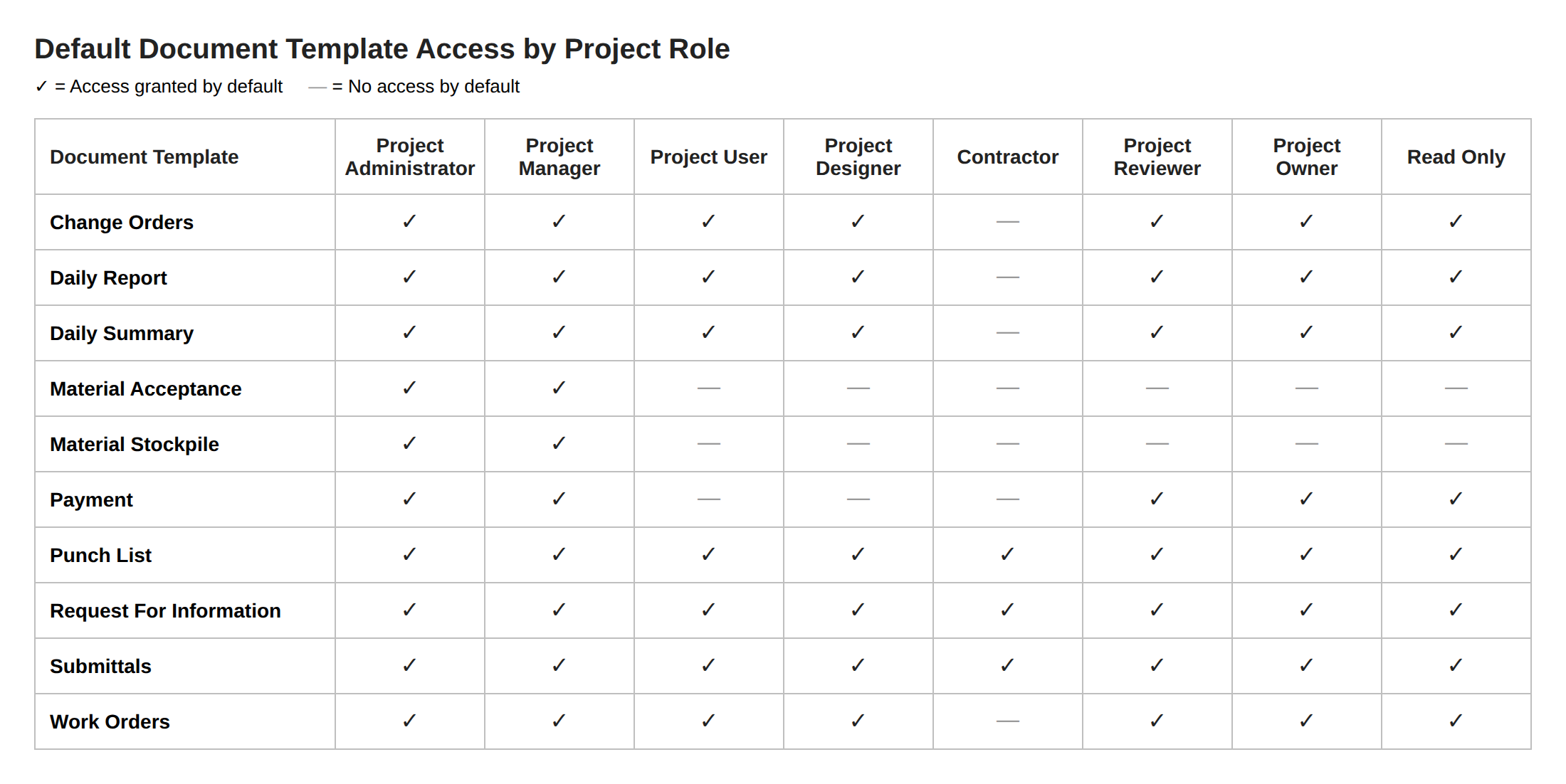
Default Document Template Permissions
FACS' default document templates can be accessed by each Project Role as outlined below. This access can be modified within the Document Library.
Default Document Entry Permissions
FACS' default document templates, and newly created document templates, are automatically assigned the following default permission for each role. The permissions for all document templates can be modified within the account.
In the table below:
Yes = Role has the permission
If Creator = Role has the permission on entries they created
No = Role does not have the permission
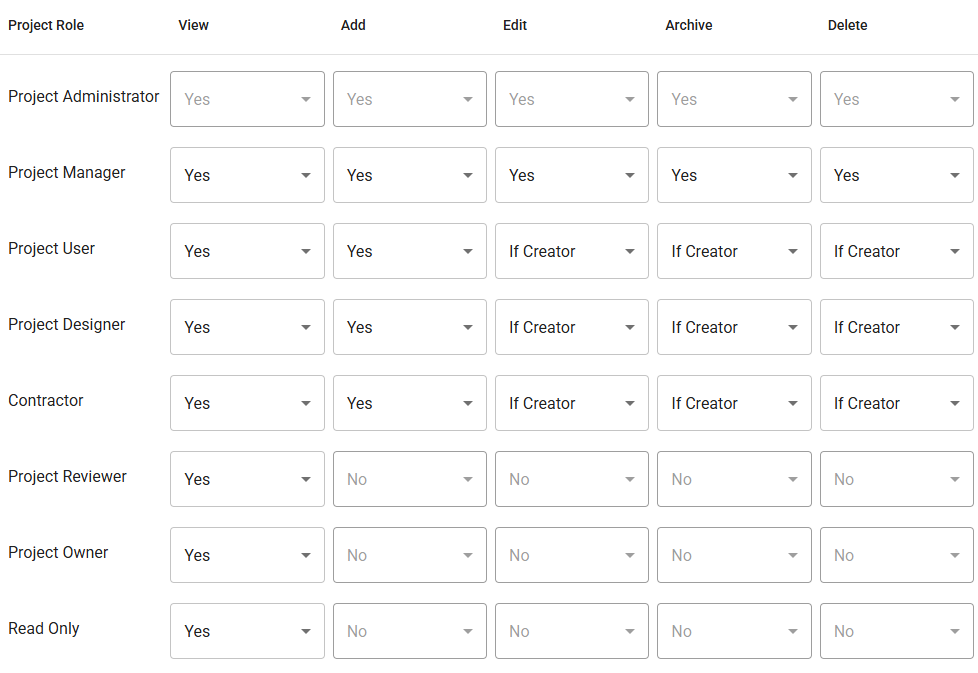
NOTE: Some rows, like Project Administrator and Read Only , do not allow for editing.
Choosing the Right Role to Manage Cost
If someone only needs to review, comment on, or read Entries, assign them a free Account Role (Account Reviewer or Account Read Only) with the matching Project Role, rather than making them an Account User. This keeps them off a paid license while still giving them the access they need.
If you have any questions, or need additional assistance, please reach out to our support team at support@facsware.com and we will be happy to assist you.