![logo_2x.png]](https://support.facsware.com/hs-fs/hubfs/FACS_January_2020/Images/logo_2x.png?height=40&name=logo_2x.png)
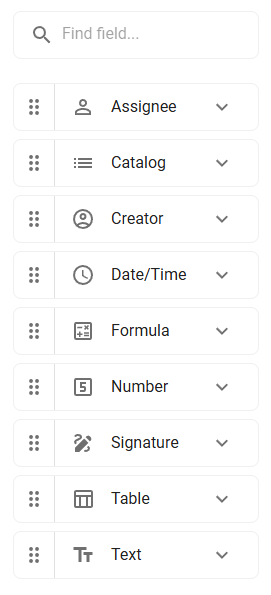
Creating Fields
-
Fields can be created:
-
Directly within the Document Field Library, or
-
On-the-fly while building a Document Template
-
-
Once created, fields are automatically added to the Field Library for reuse.
Field Naming Rules
-
No two fields of the same type can have the same label (e.g., two date fields cannot both be labeled “Date”).
Field Configuration
-
All field settings (e.g., Required, Default Value, etc.) available in the Document Library are also available in the Field Library.
-
Fields include metadata such as:
-
Type
-
Label
-
Associated Templates
-
Required
-
Copy field value on Duplicate
-
Log Page Order
-
Deleting Fields
From a Document Template
-
Fields can be removed from a specific template if no entries exist for the template. If entries exist, the field can only be set to not display.
-
Existing entries retain their data; new entries will not include the field.
-
Deleted fields will not appear when duplicating an entry.
From the Field Library
-
Only Account-created fields can be deleted.
-
Deleting from the Field Library prevents future use but does not remove the field from existing templates.
-
Deleted field names can be reused.
-
FACS Standard Fields (used in FACS standard templates) and Fixed Fields (e.g., Assignee, Creator, Reference) cannot be deleted, only archived.
Usability Notes
-
Changes to a field (e.g., label or type) affect all templates that use the field.
-
Some field types may not allow certain changes if they would disrupt existing data.
-
Deletion is isolated—removing a field from one template doesn’t affect others.
Location
Document Library > Document Template > Layout
If you have any questions, or need additional assistance, please reach out to our support team at support@facsware.com and we will be happy to assist you.